Choose API site
Accounts, API keys, balances, and data are isolated between the China and overseas sites.
https://api.globalrouter.ai/v1Open selected PortalConfigure CC Switch on Windows
Current API address (screenshots are examples): https://api.globalrouter.ai/v1
Prepare an API key for the current site and install CC Switch and Codex Desktop.
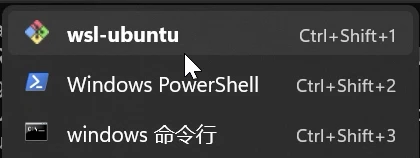
Open Windows PowerShell
Choose Windows PowerShell from the dropdown at the top of Windows Terminal. Run the Windows setup command there. If irm / iex reports command not found, you are in WSL or Bash; switch to PowerShell.
 Open full-size image
Recording timestamp · 00:05
Run setup, then enter your API key
Fully quit CC Switch, then copy and run the complete Windows configuration command in the CC Switch tab. Wait for the GlobalRouter API Key prompt before pasting your key and pressing Enter. Continue after the [OK] configuration and database backup message. Do not paste the key as a command at the PS prompt.
 Open full-size image
Recording timestamp · 00:35
Find the GlobalRouter provider
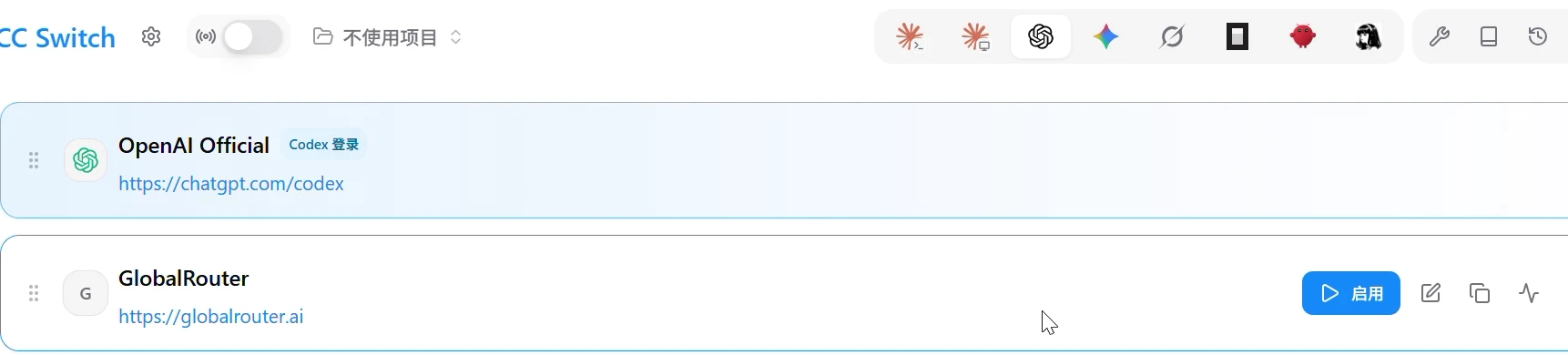
Reopen CC Switch and select the Codex icon at the top. Find GlobalRouter and click its edit icon to review the configuration. The Enable button in this screenshot means it still needs to be enabled. The website link on the card is not the API Base URL.
 Open full-size image
Recording timestamp · 00:55
Check model mappings
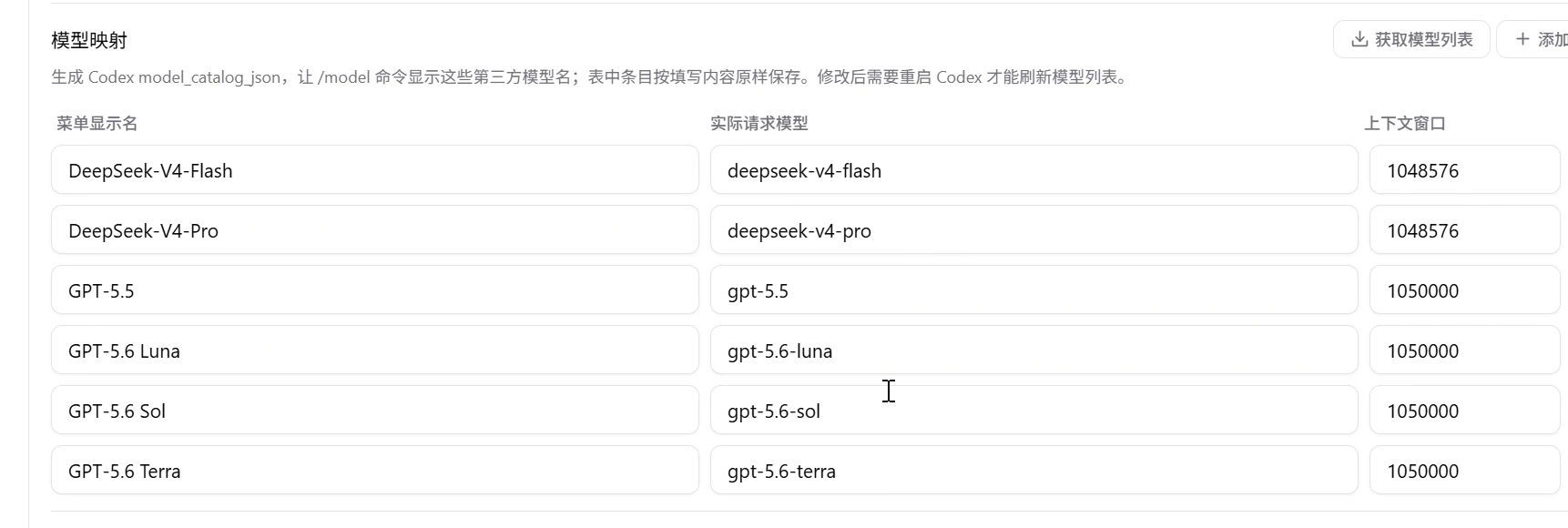
Find Model mapping in Edit provider. Review the display name, actual request model, and context window columns. The script populates the current model catalog, so manual entry is usually unnecessary; use the model catalog supplied by the configuration script. Removing some models in the recording was a personal choice, not a required step.
 Open full-size image
Recording timestamp · 01:02
Add Astra if needed, save, and enable
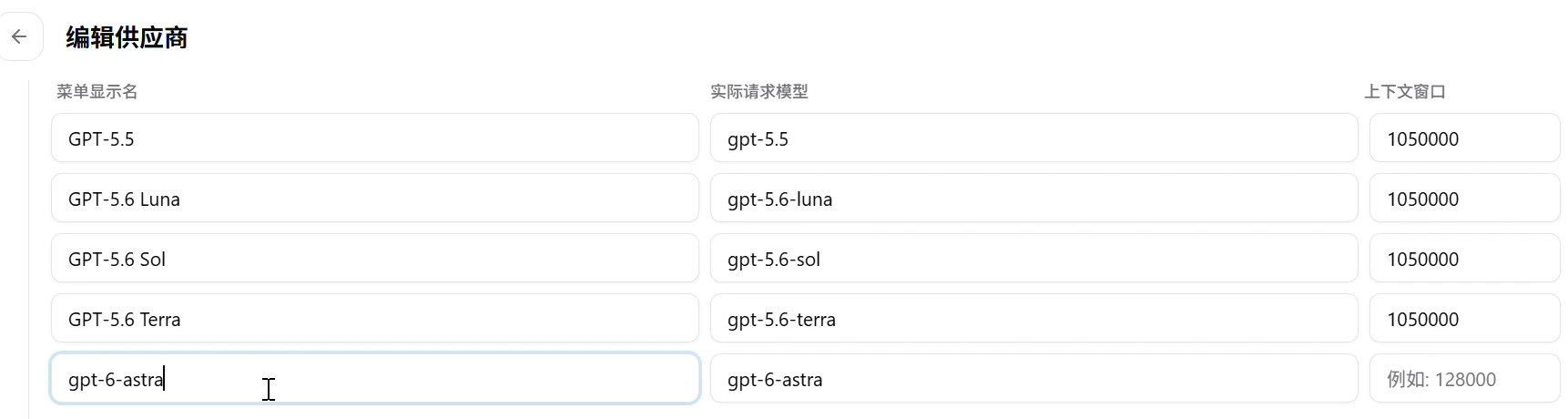
If Astra is missing, add display name GPT-6 Astra, request model gpt-6-astra, and context window 1050000. This screenshot shows an unfinished edit: 128000 is a placeholder, not a configured value. Save, return to the list, and enable GlobalRouter. Then run the Windows reasoning repair command in the CC Switch tab; repeat the repair whenever CC Switch reapplies the configuration.
 Open full-size image
Recording timestamp · 01:38
Restart Codex and finish first-time setup
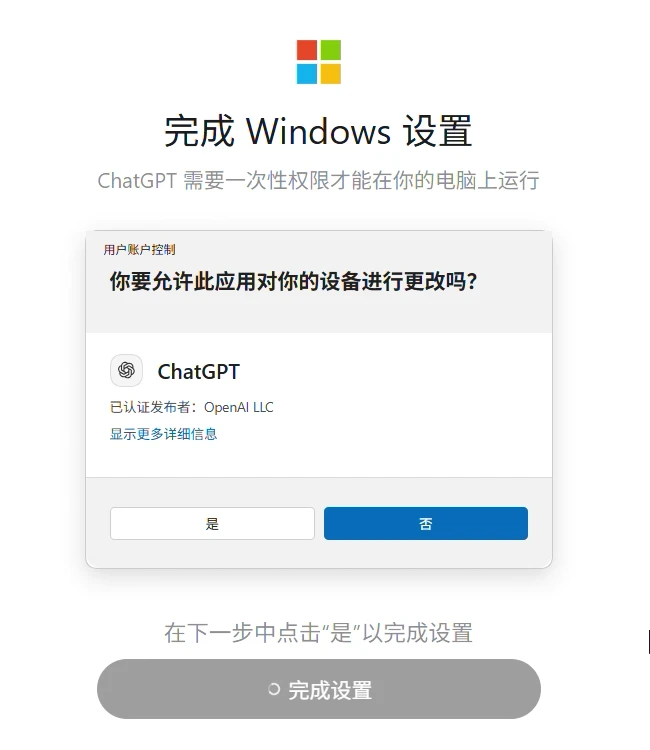
Fully quit and reopen Codex Desktop. If the Complete Windows setup screen appears, click Complete setup, check the application and publisher in the subsequent system permission dialog, and finish initialization. Skip this step if setup is already complete.
 Open full-size image
Recording timestamp · 02:18
Start a new conversation and verify the request
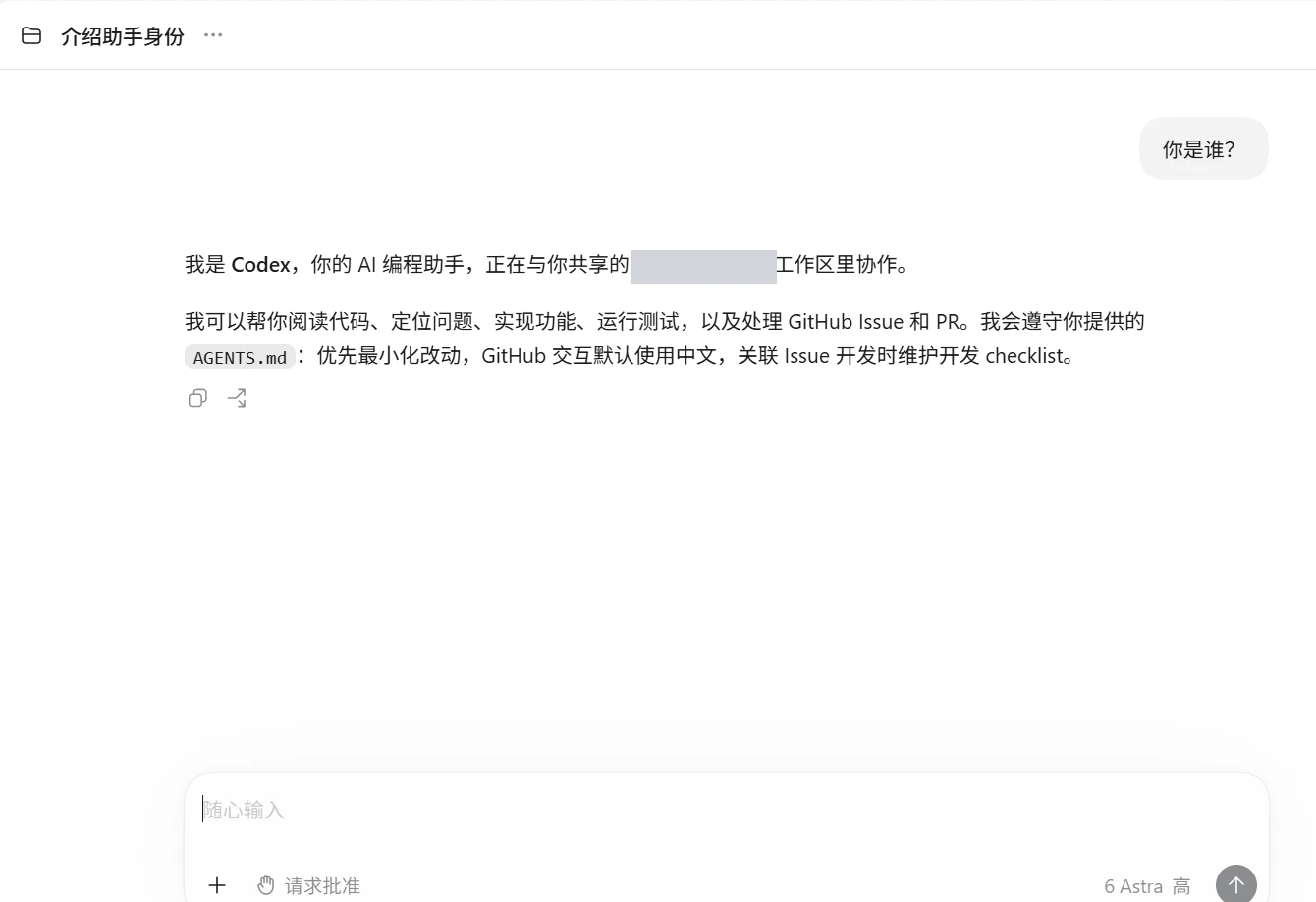
Start a new conversation, select a configured model and reasoning effort, and send a simple message. The recording ends with a reply using 6 Astra / High. Also check the matching time, API key, model, and successful request in your selected GlobalRouter site's request logs. A model's self-description alone cannot verify its identity or traffic destination.
 Open full-size image
Recording timestamp · 02:47